10 Proven Steps to Transfer Data Safely to OnePlus 15 — Avoid Costly Mistakes
Ensure your **transfer data safely to OnePlus** process is secure and error-free with clear steps that prevent loss, duplication, or device glitches. This concise teaser highlights proven methods that help users switch phones with confidence.

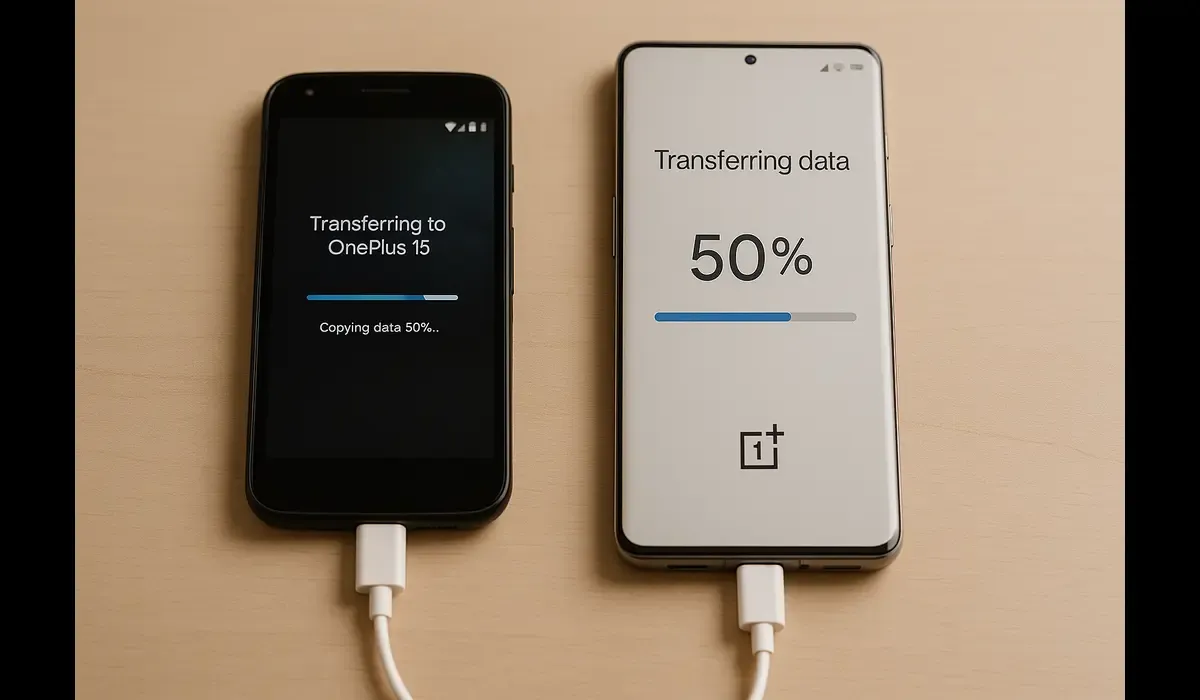
Transfer data safely to OnePlus 15 can feel daunting, especially when your old phone holds years of important photos, contacts, apps, and documents. A botched transfer can lead to data loss, missing apps, or broken app credentials. But when done properly, migration is seamless and stress-free.
OnePlus provides built-in tools and recommended approaches to make the process reliable. This article walks you through multiple methods — from cable to wireless, Android to iOS — each with step-by-step instructions, safety tips, and real user insights.
- Use Clone Phone (formerly OnePlus Switch) for fast, localized transfers.
- USB + cable method works well for large media and app data.
- Cloud-based backups (Google, OneDrive) serve as safety nets.
- Always verify transferred data and wipe the old device securely.
What Does “Transfer Data Safely to OnePlus 15” Mean?
When we say “transfer data safely,” it implies:
- Data integrity — no corruption or missing files.
- Security & privacy — no exposure of sensitive files.
- App continuity — apps remain functional, where possible.
- Selective control — ability to choose what to migrate.
- No data overlap problems — avoid duplicates, conflicts.
In practical terms, you’ll migrate contacts, messages, photos, videos, settings, and apps (where supported). Some secure app data (e.g. banking apps) may require re-login despite migration.
Why It Matters
- You carry years’ worth of memories, contacts, and settings. Losing them is painful.
- A fresh start with a new phone feels much better when everything you need arrives intact.
- Efficient migration reduces downtime and frustration.
- Ensures you don’t forget crucial data like passwords, documents, or chat logs.
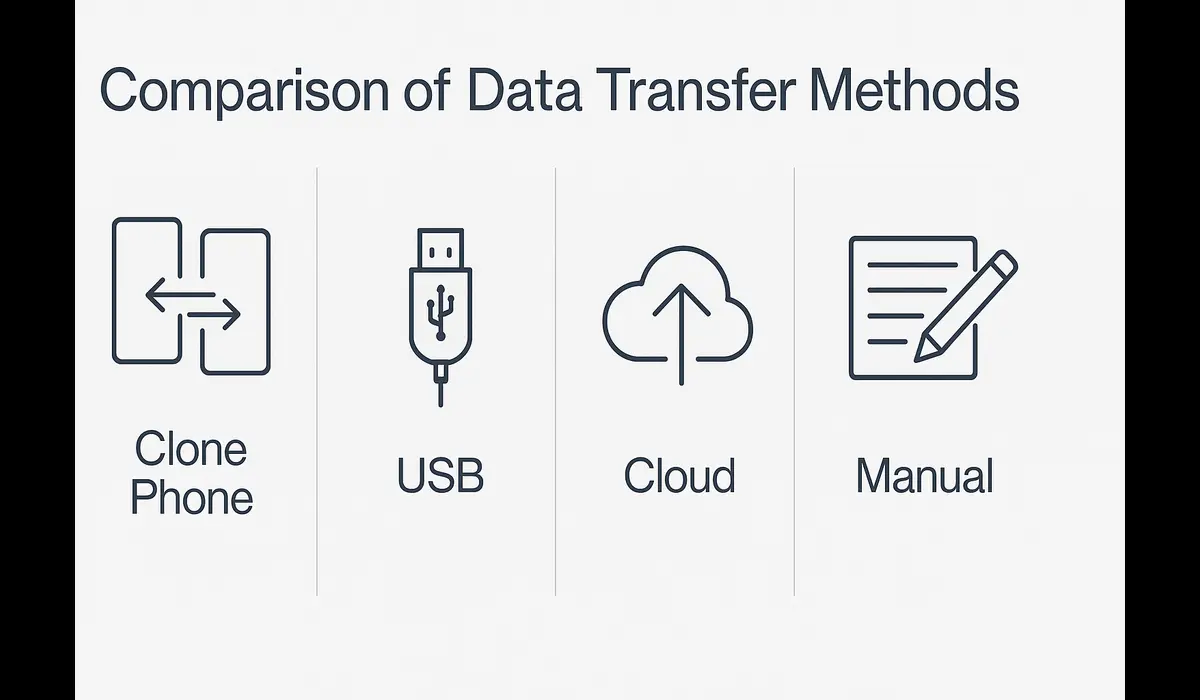
What Options Exist for Transfer?
| Method | Best For | Requires | Pros | Cons |
|---|---|---|---|---|
| Clone Phone / OnePlus Switch | Most users | Both phones, local link | Fast, no internet needed | Some apps may need re-login |
| USB Cable Transfer | Large media files | USB-C cable, OTG adapters | Reliable, fast | Needs cable, manual steps |
| Cloud Backup & Restore | Backup + transfer | WiFi, cloud account | Works across platforms | Dependent on bandwidth & space |
| Third-party tools | Special cases / cross-brand | PC or Mac + software | Flexible, wide compatibility | Cost, overhead, risk of bugs |
| Manual File Copy | Specific files only | PC, USB, file manager | Full control | Time-consuming |
How Clone Phone (OnePlus) Works
OnePlus’s official migration tool is Clone Phone (formerly called OnePlus Switch). It enables direct peer-to-peer transfer between your old phone and OnePlus 15 — no cloud, minimal external storage, no spyware.
- It supports contacts, messages, call logs, photos, videos, audio, apps (with data where supported).
- Works between Android devices freely. For iPhone to Android, limited data types can migrate.
How to Use Clone Phone (Step-by-Step)
- Install Clone Phone on both devices (if not present).
- On OnePlus 15, choose “This is the new phone.”
- On old phone, choose “Old phone.”
- Connect via QR code scan or hotspot.
- Grant permissions (contacts, media, etc.).
- Select data categories to migrate.
- Start the transfer.
- Wait until completion and verify the data.
Notes & Tips:
- Ensure both devices are plugged into charger.
- Keep phones close, no interruptions.
- Large media (e.g. 100 GB) may take long; consider segmenting.
Step-by-Step Guide: Transfer Data Safely to OnePlus 15
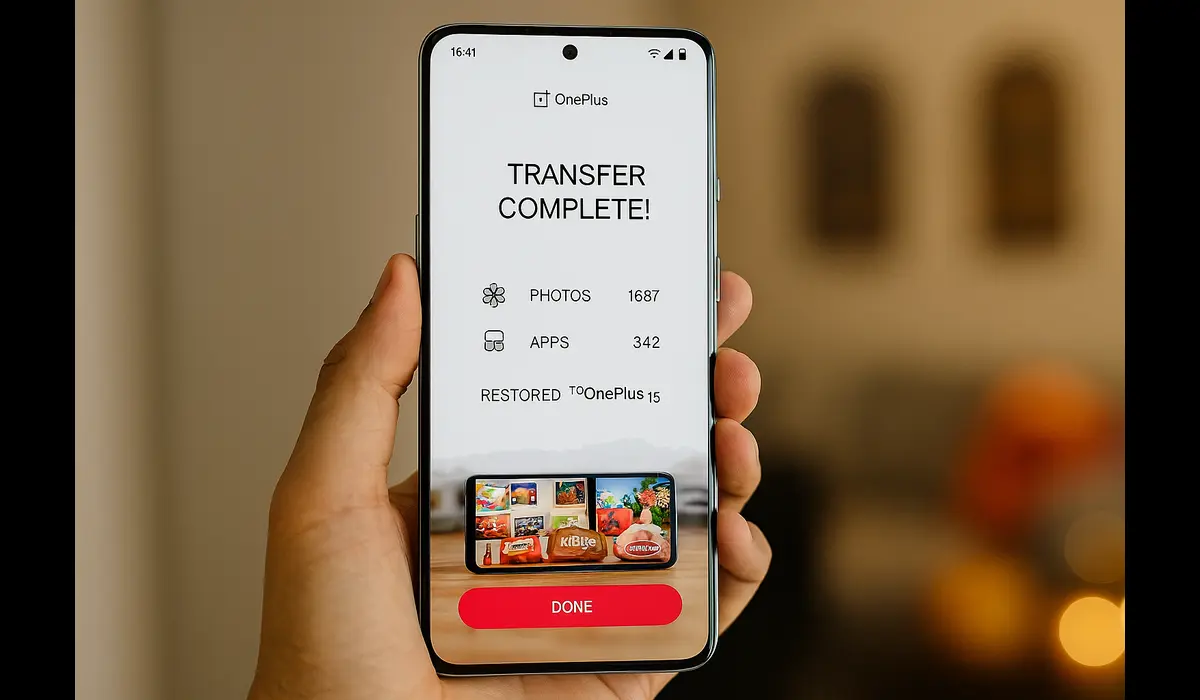
Step 1: Preparation
- Charge both phones above 50%.
- Update OS and apps to latest version.
- Clear unwanted files to reduce transfer load.
- Backup old phone via cloud or local.
Step 2: Choose Method
Decide whether to use Clone Phone, USB, cloud, or third-party tool.
Step 3: Clone Phone Transfer
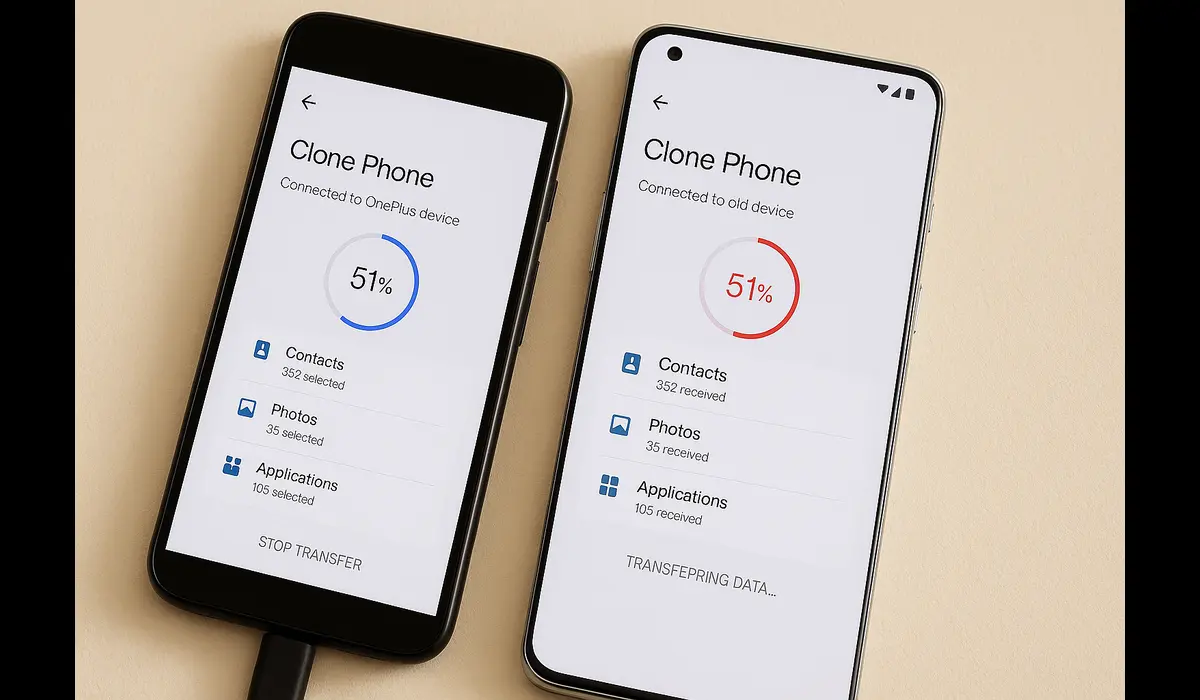
Follow the steps above. Confirm each category. Monitor progress.
Step 4: USB Cable Transfer (Manual / Wired)
- Connect old phone via USB cable (USB-C to USB-C or USB-C to micro USB).
- On OnePlus 15, accept “File Transfer / MTP” mode.
- Use file manager on both phones or via PC as intermediary.
- Drag/copy folders: DCIM, Pictures, Documents, Downloads, etc.
- Reinstall apps via Play Store and sync settings.
Step 5: Cloud Backup & Restore
Use Google Drive / OneDrive / Dropbox:
- On old phone, back up contacts, photos, documents.
- Sign into the same account on OnePlus 15.
- Restore data and sync.
- Some apps support cloud restore for app data.
Step 6: Verify & Secure
- Check contacts, messages, photos, app data.
- Re-login to apps.
- Wipe old phone securely (Factory Reset) once satisfied.
Common Mistakes, Challenges & Myths
- Myth: “Clone Phone transfers everything perfectly.”
Reality: Some apps with encryption or banking may not transfer app data. - Mistake: Starting transfer on low battery — can interrupt and corrupt.
- Challenge: Large storage size (100 GB+ media) may cause slower transfers.
- Myth: Cloud transfer is always safer — sometimes data corruption or mismatch.
- Mistake: Forgetting to enable permissions — causes partial transfer issues.
Expert Insights & Case Studies
- According to OnePlus’s Switch / transfer page, data migration is built for simplicity and security.
- From user communities, many users reported that Clone Phone moved apps, media, and messages seamlessly between OnePlus devices.
- A third-party guide (MobiKin) confirms the reliability of Clone Phone for complete Android transfers, advising use of wired methods when wireless fails.
Future Trends: What’s Next for Device Migration
- AI-assisted transfers that detect what is needed to migrate intelligently.
- Cross-platform seamless transfer e.g. iOS → Android including app data.
- Blockchain-based file integrity checks to ensure no corruption.
- Zero-touch launches where data replicates instantly when powered on.
FAQs
Q1: How to transfer data safely to OnePlus 15?
Use Clone Phone app for peer-to-peer, or USB / cloud as backup.
Q2: Can I transfer from iPhone to OnePlus 15?
Partially — contacts, photos, and some data can migrate, but app data usually not.
Q3: Will all my apps and passwords transfer?
Not always. For security apps or banking apps, you may need to log in manually.
Q4: How long does the transfer take?
Depends on volume; 10–50 GB may take 10–30 minutes via Clone Phone.
Q5: Can data be lost during transfer?
Risk is low if both devices stay powered and the connection is stable. Always back up first.
Key Takeaways
- Transfer data safely to OnePlus 15 primarily via Clone Phone for ease and security.
- Use USB or cloud when necessary or as fallback.
- Always prepare, backup, and verify before wiping your old device.
- Be aware of limitations with secure apps and large data sets.
- Expect innovations like AI-driven, cross-platform migration in near future.
Conclusion
Migrating to the OnePlus 15 doesn’t have to be nerve-wracking. By choosing the right method — Clone Phone, USB cable, or cloud — and following best practices, you can transfer data safely to OnePlus 15 with minimal disruption.