How to Use Space-Saving Cloud Drives Without Risk
Learn how to use space-saving cloud drives without risk, with practical tips on security, backups, and data management. This concise guide helps users free up storage while keeping their files protected.

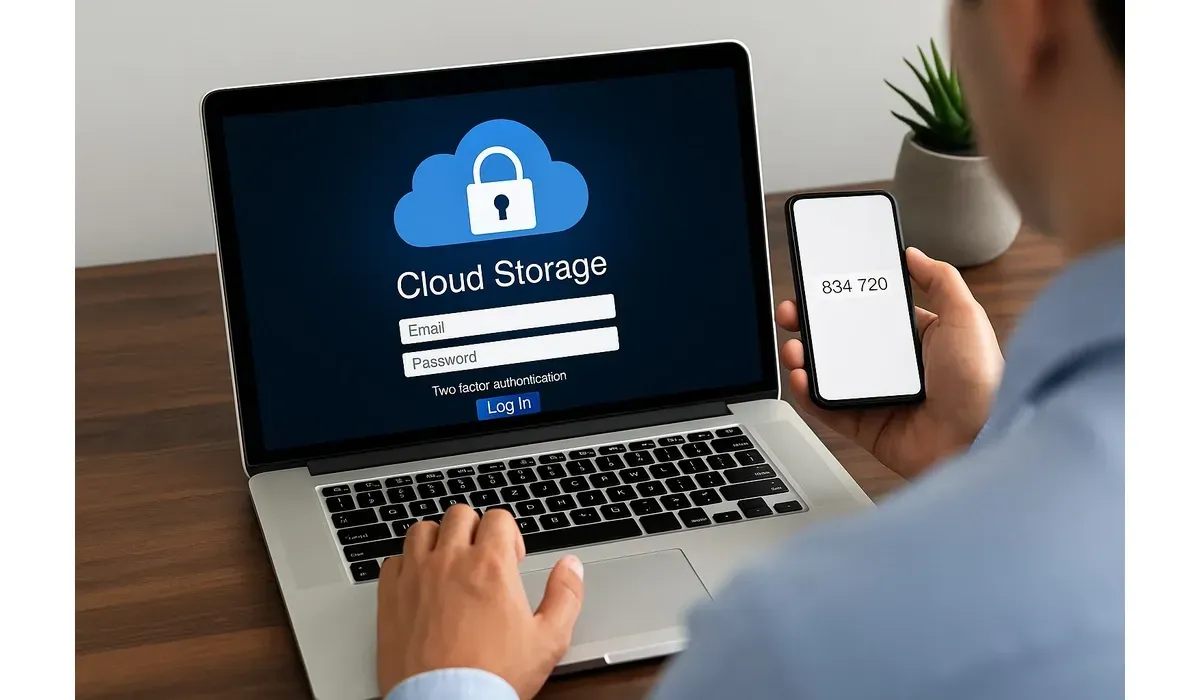
Cloud drives are a lifesaver when your device storage runs low. Features like space-saving cloud drives free up space by storing files online while keeping access instant. But many worry: is it safe? Let’s explore how to use them smartly—without putting your data at risk.
What Are Space-Saving Cloud Drives?
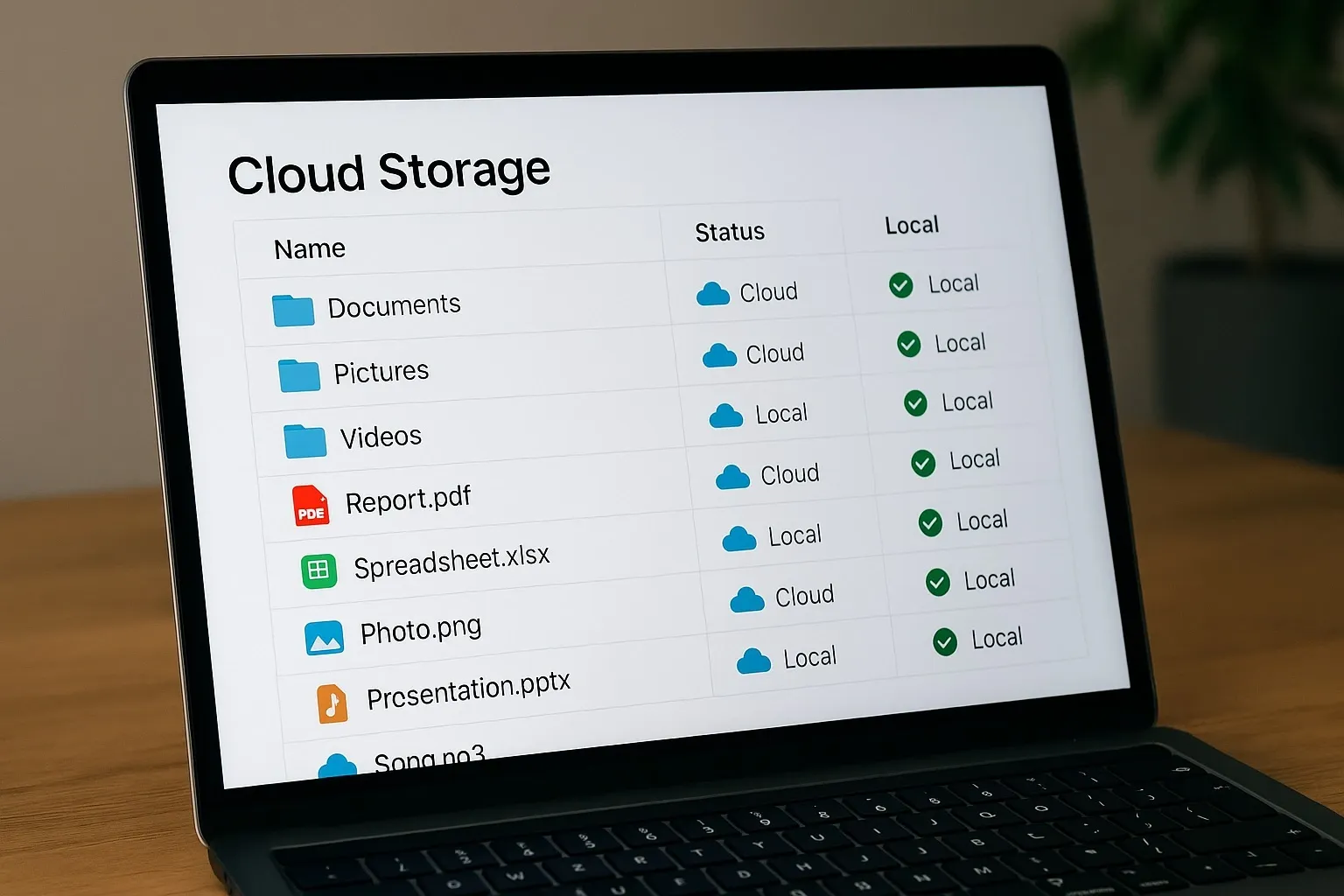
Space-saving cloud drives allow you to access large files without keeping them fully stored on your device. Services like Google Drive, Dropbox, OneDrive, and iCloud use a system where files appear locally but live in the cloud until opened.
Why it matters:
– Saves local storage space.
– Files stay accessible across devices.
– Perfect for professionals juggling large media or project files.

Benefits of Space-Saving Cloud Drives
1. Free up device space: Store gigabytes in the cloud without slowing down your laptop or phone.
2. Access anywhere: Your files sync across devices with internet access.
3. Collaboration: Share files instantly with teams and clients.
4. Backup safety: Protects files in case of local device failure.
Risks of Using Space-Saving Cloud Drives
– Accidental file deletion: Removing a cloud-linked file could erase it everywhere.
– Data breaches: Hackers may target cloud accounts.
– Offline access issues: Cloud-only files won’t open without internet.
– Sync errors: Sometimes files fail to update correctly.
How to Use Space-Saving Cloud Drives Safely
- Enable Two-Factor Authentication: Most cloud providers offer 2FA. This adds a second security layer beyond your password.
- Use Strong Password Managers: Pair your cloud account with tools like Bitwarden or 1Password to prevent account compromise.
- Keep Local Backups: Always keep important files backed up offline or on an external hard drive.
- Manage File Settings: Choose which files to keep offline (always accessible) and which to store online only.
- Encrypt Sensitive Files: For highly confidential data, encrypt before uploading. Tools like VeraCrypt work well.
Best Space-Saving Cloud Drive Services
Google Drive
– Pros: Integrates with Google Workspace, good free storage (15GB).
– Cons: Shared quota with Gmail and Photos.
– Best for: Professionals using Docs, Sheets, and Gmail.
Microsoft OneDrive
– Pros: Seamless Windows integration, Files On-Demand.
– Cons: Limited free storage (5GB).
– Best for: Microsoft 365 users.
Dropbox
– Pros: Smart Sync feature, strong collaboration tools.
– Cons: Free storage only 2GB.
– Best for: Creative professionals sharing large media.
Apple iCloud
– Pros: Native for Apple devices, optimized photo storage.
– Cons: Limited cross-platform flexibility.
– Best for: iPhone and Mac users.
Quick Comparison: Space-Saving Cloud Drives
– Google Drive: Best for all-around free storage.
– OneDrive: Best for Windows professionals.
– Dropbox: Best for creative media teams.
– iCloud: Best for Apple ecosystem users.
FAQs on Space-Saving Cloud Drives
Q1: Are space-saving cloud drives safe?
Yes, if you use reputable providers and enable strong security practices like 2FA.
Q2: Can I access files offline with space-saving cloud drives?
Yes, but you need to mark files for offline use before losing internet access.
Q3: Which cloud drive is best for professionals?
OneDrive integrates seamlessly with Office tools, while Google Drive is best for collaboration.
Q4: Do cloud drives replace backups?
No. Always maintain offline or external backups for critical files.
Bottom Line
Space-saving cloud drives are a smart way to manage storage, but only if used carefully. Protect your data with backups, encryption, and strong login security. That way, you get the convenience of cloud storage—without the risks.