How to Install OxygenOS 16 on OnePlus Phones — Complete Easy Upgrade

How to install OxygenOS 16 on OnePlus devices is one of the most searched topics right now, as users want to upgrade to the latest interface without issues. The update brings fresh design changes, smarter performance optimization, and enhanced security.
- Quick to install if you follow the right process.
- Safe when you back up your data first.
- Unlocks new features like faster animations and improved battery efficiency.
If you’ve been waiting to experience the new OxygenOS, here’s your ultimate installation roadmap.
What Is OxygenOS 16? (Definition / Quick Context)
OxygenOS 16 is the newest version of OnePlus’s custom Android skin, offering a cleaner design, smoother animations, upgraded security patches, and battery optimization. It builds on Android 15 with added customization options and privacy controls.
Latest Update — Rollout Status & Device Eligibility
OnePlus has begun pushing OxygenOS 16 to select devices in India and global markets. Models currently eligible include:
- OnePlus 11 & 11R — stable builds available.
- OnePlus 10 Pro & 10T — rolling out gradually.
- OnePlus 9 & 9 Pro — open beta builds now live.
The stable release started in September 2025, with a wider rollout expected in the coming months. Global users might see minor delays compared to India’s schedule.
Step-by-Step Guide — How to Install OxygenOS 16 on OnePlus Devices
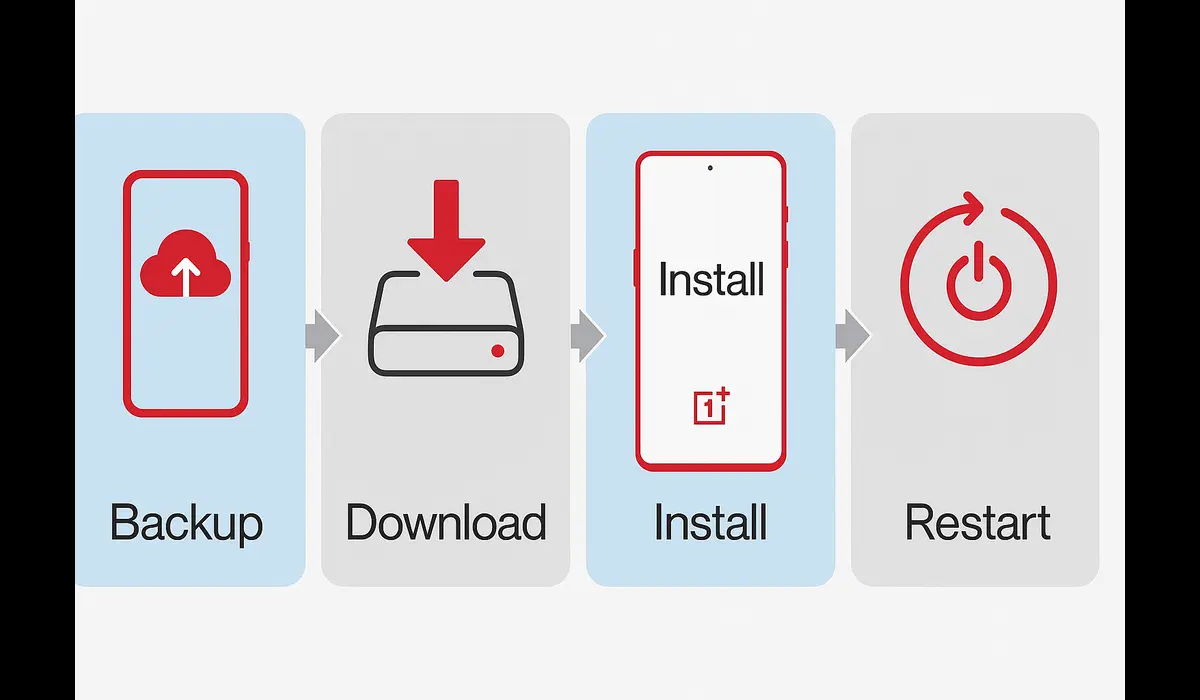
1. Check Eligibility & Backup Data
- Go to Settings → About device → Version.
- Ensure your phone shows OxygenOS 15 or above.
- Back up contacts, photos, and apps using OnePlus Cloud or Google Drive.
2. Ensure Battery & Storage
- Charge your phone to at least 50%.
- Keep 5–8GB of free internal storage for the update package.
3. Update Directly (Stable Build)
- Open Settings → System → System Updates.
- Tap Check for updates.
- If OxygenOS 16 is available, select Download & Install.
- Your phone will restart automatically.
4. Manual Local Update (If OTA Not Available)
- Visit the official OnePlus website on a PC.
- Download the correct OxygenOS 16 firmware for your model.
- Transfer the
.zipfile to your phone’s main storage. - Go to Settings → About device → Version → Local Install.
- Select the file and follow on-screen prompts.
5. Use Recovery Mode (Advanced Users)
- Power off the phone.
- Hold Volume Down + Power to enter recovery mode.
- Select Install from internal storage and choose the downloaded package.
Why It Matters — Benefits of OxygenOS 16
Upgrading to OxygenOS 16 isn’t just about visuals.
- Performance Boost — 10% faster app launches and reduced lag.
- Improved Privacy — smarter permission alerts and secure folders.
- New Productivity Features — upgraded Shelf, better multitasking, and fluid animations.
- Extended Battery Health — adaptive charging for longer lifespan.
Comparison — OTA vs Manual Update
| Feature | OTA Update (Recommended) | Manual Local Update |
|---|---|---|
| Ease of Use | One-click process | Requires firmware download |
| Risk | Very low | Slightly higher if wrong file used |
| Internet Needed | Wi-Fi recommended | Wi-Fi or PC |
| Suitable For | Beginners | Advanced users or early adopters |
Expert Tips to Avoid Issues
- Use official OnePlus firmware — never rely on unverified sources.
- Do not interrupt the installation once started.
- Avoid rooting or custom ROMs before updating.
- Keep your phone cool and avoid heavy usage during installation.
Practical Takeaways
- Always back up your data before major updates.
- Prefer OTA updates for stability.
- If manual installation is needed, match the firmware to your exact device model.
- After installation, reboot again to stabilize system cache.
FAQs
Q1: Can I roll back to OxygenOS 15 after installing 16?
Yes, but you must download the rollback package from OnePlus support and follow the local install method.
Q2: How long does the OxygenOS 16 update take?
OTA installs in 10–20 minutes; manual updates may take longer.
Q3: Will installing OxygenOS 16 erase my data?
Normally no, but manual updates and rollbacks may cause data loss — always back up first.
Key Takeaways
- OxygenOS 16 offers better performance, privacy, and visuals.
- OTA updates are the safest way to upgrade.
- Manual update is an option for early adopters but needs caution.
- Backup and check battery/storage before starting.
Conclusion
Knowing how to install OxygenOS 16 on OnePlus devices correctly ensures a smooth, risk-free upgrade. With the right steps and preparation, you can enjoy faster performance, stronger security, and a refined user experience.