Set Up Secure Backups With These Free Tools
Discover how to set up secure backups using free, reliable tools that protect your data without extra cost. This guide highlights the essential steps and best options to keep your files safe and recoverable anytime.
Data loss can happen in seconds—from system crashes to accidental deletions. Without a reliable backup, your files, projects, and memories could be gone for good. The good news? You don’t need expensive software. In this guide, we highlight the best free tools to set up secure backups and keep your data safe.
Why Use Free Tools to Set Up Secure Backups
According to Acronis Cyber Protection Report 2022, nearly 76% of organizations experienced downtime due to data loss. For individuals and small businesses, secure backups are not a luxury—they’re a necessity.
Free backup tools make protection accessible to everyone. They help ensure you never lose critical files, without draining your budget.

Best Free Tools to Set Up Secure Backups
1. Google Drive Backup and Sync
How It Works: Google Drive offers 15GB of free cloud storage. With Backup and Sync, files automatically upload from your computer and mobile devices to the cloud.
Pros:
- Easy to set up – Works across devices – Integration with Google Docs, Sheets, and Gmail
Cons:
- Limited free storage (15GB) – Requires internet access for cloud sync
Free vs Paid:
Free tier offers 15GB. Paid Google One plans expand storage starting at $1.99/month.
Use Case Example: Freelancers use Google Drive to automatically back up project files and access them on any device.
2. OneDrive by Microsoft
How It Works:
OneDrive gives users 5GB of free cloud storage, syncing documents, photos, and videos across devices.
Pros:
- Seamless integration with Windows 10/11 – Collaboration features with Microsoft Office -Automatic photo backup from mobile
Cons:
- Free storage limited to 5GB – Slower syncing with very large files
Free vs Paid:
Free plan includes 5GB. Microsoft 365 subscribers get 1TB with premium features.
Mini-Comparison with Google Drive:
While Google Drive offers more free space, OneDrive is better for those deeply invested in the Microsoft ecosystem.
3. Dropbox Basic
How It Works:
Dropbox Basic provides 2GB of free cloud storage with automatic file sync across desktop and mobile.
Pros:
- Reliable syncing – File recovery for deleted items (30 days) – Works on all major platforms
Cons:
- Very limited free space (2GB) – Lacks advanced security in free tier
Free vs Paid:
Free plan with 2GB storage. Paid Plus plan starts at $9.99/month.
Use Case Example: Students use Dropbox for group projects and quick file sharing.
4. AOMEI Backupper Standard
How It Works: AOMEI Backupper is a free Windows tool for system, disk, and file backups. It supports scheduling and full, incremental, or differential backups.
Pros:
- Complete system and disk cloning – Scheduled automatic backups – Free forever with essential features
Cons:
- Windows-only – Interface can feel outdated
Free vs Paid:
Free version covers most basic needs. Paid Professional edition adds advanced features like event-triggered backups.
Mini-Comparison with Cloud Tools:
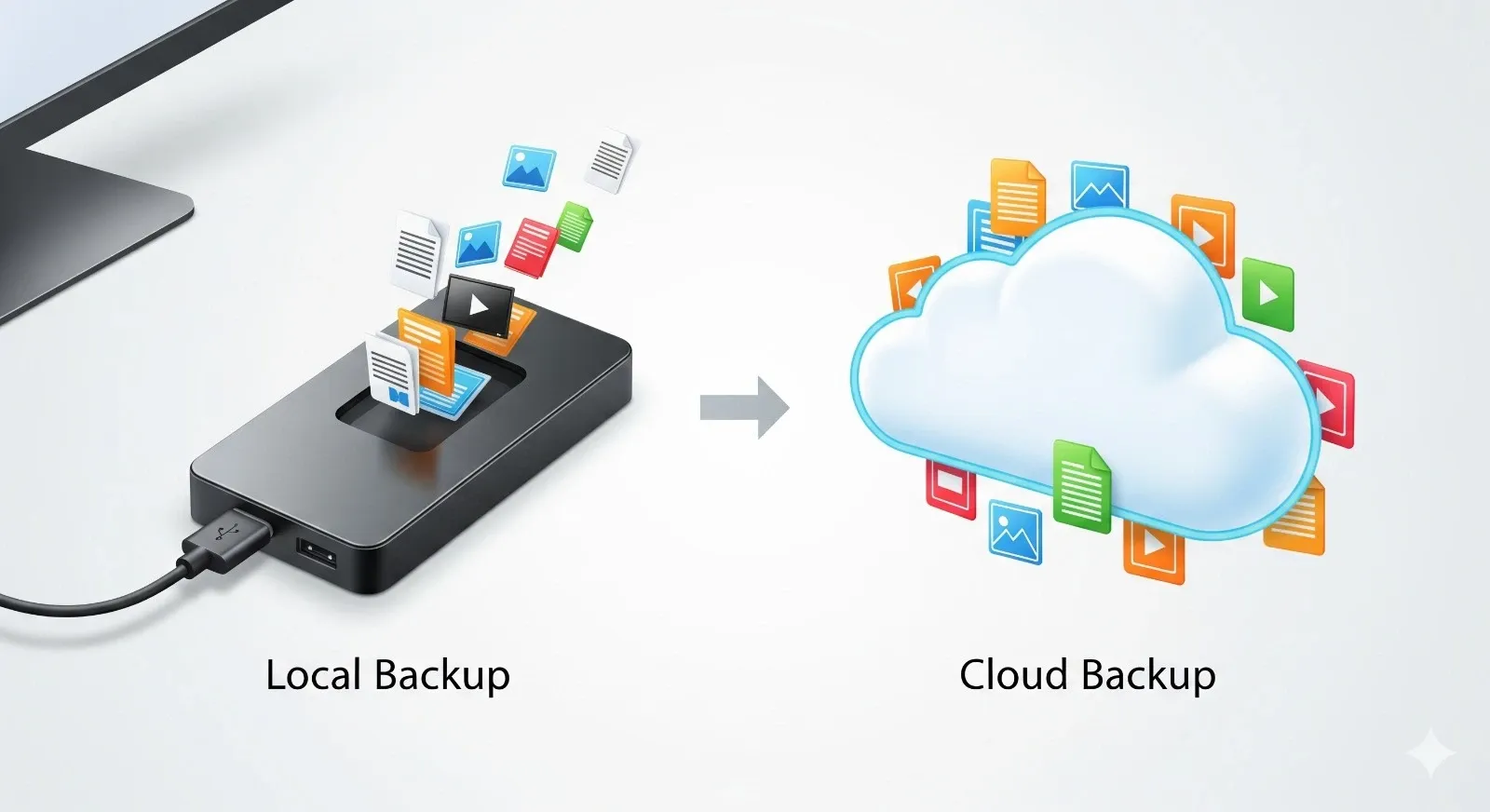
Unlike Google Drive or Dropbox, AOMEI focuses on local backups, making it useful for offline protection.
5. Duplicati
How It Works:
Duplicate is an open-source backup tool that encrypts and stores data on cloud services (Google Drive, OneDrive, Amazon S3, etc.) or local drives.
Pros:
- Strong encryption (AES-256) – Works with multiple storage providers – Free and open-source
Cons:
- Requires some setup – Interface less polished than commercial tools
Free vs Paid:
Entirely free and open-source.
Use Case Example: Tech-savvy users who want secure, customizable backups use Duplicati to manage encrypted storage across different platforms.
Quick Comparison of the Best Free Tools to Set Up Secure Backups
| Tool | Best For | Free Space | Platform |
| Google Drive | Everyday cloud backups | 15GB | Windows/Mac/Mobile |
| OneDrive | Microsoft users | 5GB | Windows/Mac/Mobile |
| Dropbox | Quick file sharing | 2GB | Windows/Mac/Mobile |
| AOMEI Backupper | Local backups | Unlimited | Windows |
| Duplicati | Encrypted multi-cloud | Unlimited | Windows/Mac/Linux |
How to Choose the Best Free Tools to Set Up Secure Backups
When selecting a backup tool, consider:
- Storage Space – How much free space do you need?
- Security – Is encryption offered for your data?
- Platform Compatibility – Does it work across your devices?
- Ease of Use – Do you prefer simple cloud sync or advanced scheduling?
FAQs on Free Tools to Set Up Secure Backups
Q1. What is the most secure free backup tool?
Duplicati is highly secure with strong encryption, making it one of the best options.
Q2. Can I rely only on free cloud storage for backups?
Yes, but free storage is limited. Combining cloud with local tools like AOMEI gives better protection.
Q3. Which free backup tool works best for Windows users?
AOMEI Backupper Standard is excellent for complete system and file backups.
Q4. Are free backup tools safe for confidential files?
Yes, but choose ones with encryption (like Duplicati) and check their privacy policies.
Bottom Line
Free tools to set up secure backups provide peace of mind without extra costs. From cloud services like Google Drive to local options like AOMEI, there’s a solution for every need. Choosing the right mix ensures your data stays safe, accessible, and protected from unexpected loss.