6 Proven Steps to Enable Copilot AI in Windows 11 for Faster, Safer Performance
Learn how to enable Copilot AI in Windows 11 with six simple, research-backed steps designed to boost speed, security, and everyday efficiency. This quick guide shows you exactly what to activate — and why it matters.

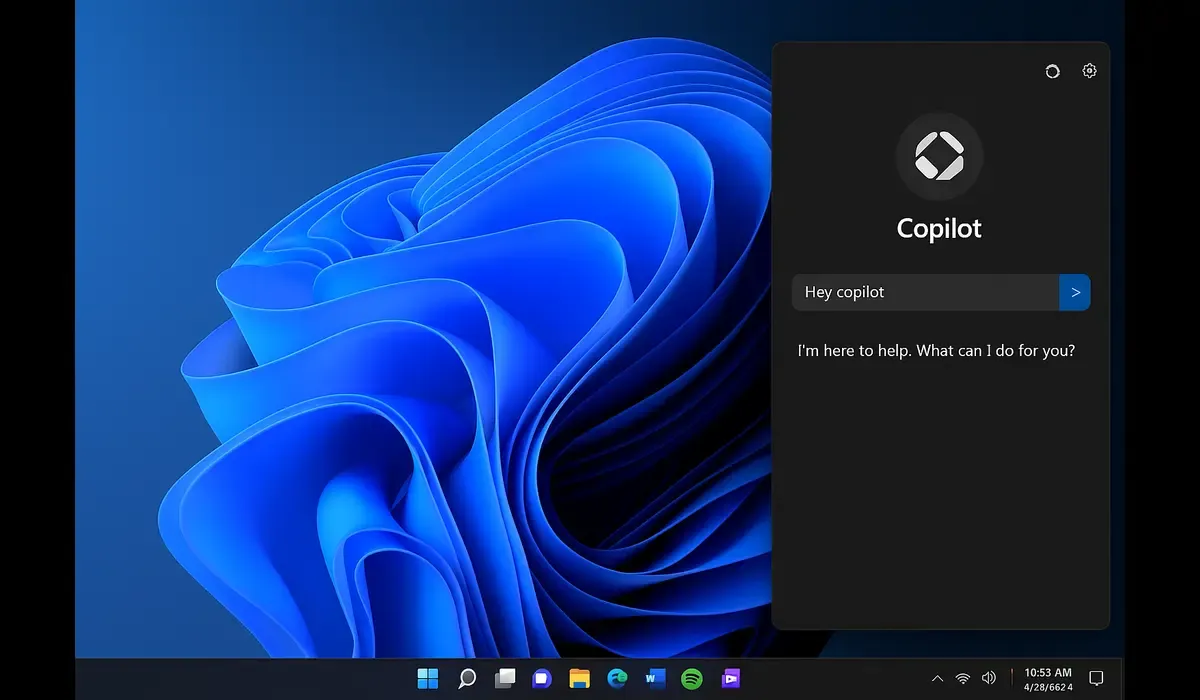
Step-by-step guide to enable Copilot AI in Windows 11 walks you through the process of activating Microsoft’s new artificial intelligence assistant built directly into the operating system.
Copilot is not just another digital assistant — it’s a system-wide AI integration that streamlines tasks, manages settings, drafts emails, and helps users perform complex operations through natural commands.
- Copilot is Microsoft’s AI companion for Windows 11 users.
- You can enable it via Settings, Group Policy, or Registry Editor.
- Once enabled, Copilot improves productivity through voice, vision, and automation features.
Quick Context
Copilot AI in Windows 11 is Microsoft’s integrated artificial intelligence assistant that merges cloud-based large language models with desktop controls. It can interpret text or voice commands, perform multi-step operations, and suggest actions based on context — all without leaving your desktop.

$750 Cash App Gift Card$750 Cash App Gift Card
Some users qualify for a $750 Cash App gift card. You can check if you qualify.
Latest Post
Latest Update
As of October 2025, Copilot AI is officially available across all modern Windows 11 23H2 and 24H2 builds. Users with standard PCs can access the assistant via Settings, while Copilot+ PC owners enjoy advanced AI features like Recall and Vision.
If Copilot isn’t visible in your taskbar, it can be manually enabled using the methods below.
Detailed Step-by-Step Guide to Enable Copilot AI in Windows 11
Follow these tested steps to enable Copilot AI in Windows 11 depending on your device configuration.
Step 1: Verify System Requirements
Before enabling Copilot, make sure your system meets these minimum requirements:
- Windows 11 version 23H2 or later
- Internet connection and Microsoft account
- System with TPM 2.0 and Secure Boot enabled
- For enhanced AI performance, a Copilot+ PC or CPU with NPU (Neural Processing Unit)
Check your version under Settings → System → About and update if required.
Step 2: Enable Copilot AI via Settings
- Click Start → Settings.
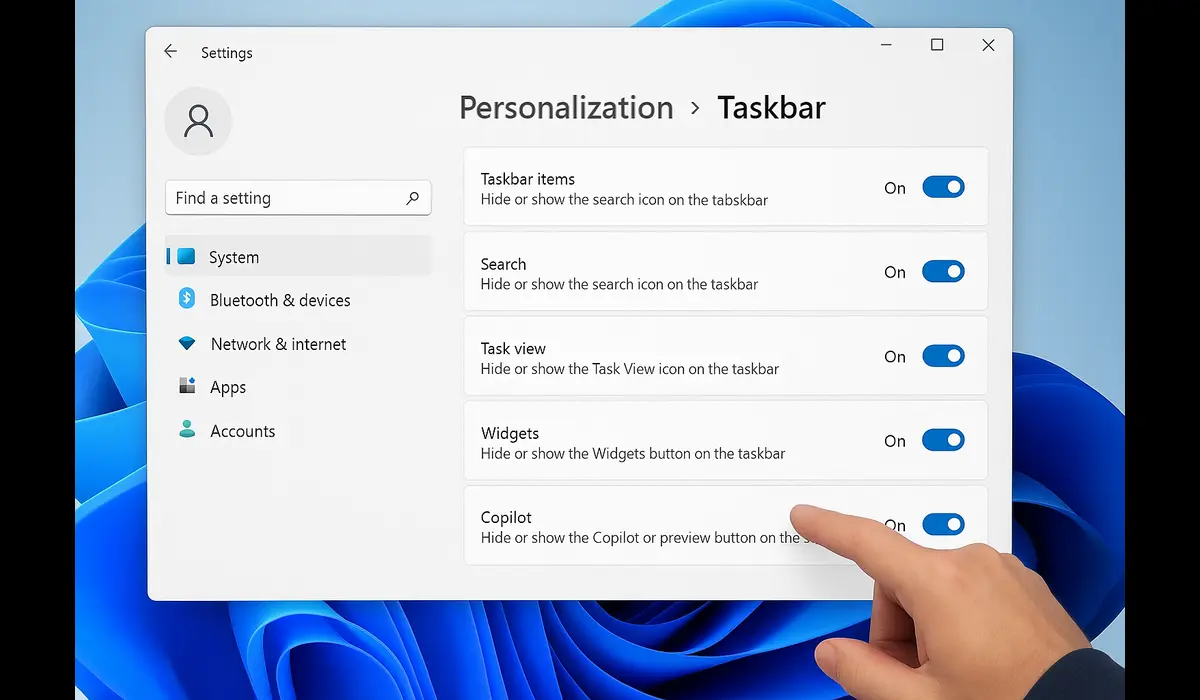
- Open Personalization → Taskbar.
- Locate the Copilot (preview) toggle.
- Switch it ON.
- Once enabled, the Copilot icon will appear in your taskbar beside the search box.
To launch Copilot, simply click the icon or use the shortcut Windows + C.
This activates the Copilot sidebar, where you can type or speak commands like:
- “Open File Explorer”
- “Turn on Bluetooth”
- “Summarize this document.”
Step 3: Enable Copilot AI via Group Policy (Windows 11 Pro/Enterprise)
For corporate or managed devices, system admins can use Group Policy Editor to enable the assistant:
- Press Windows + R, type
gpedit.msc, and hit Enter. - Navigate to:
Computer Configuration → Administrative Templates → Windows Components → ChatGPT Copilot - Find and double-click Turn off Windows Copilot.
- Select Disabled to activate Copilot.
- Click Apply → OK.
- Restart your PC.
After rebooting, the Copilot icon will appear on your taskbar automatically.
Step 4: Enable Copilot AI via Registry Editor (Advanced Users)
If the Settings toggle is unavailable, Registry Editor can manually add the Copilot feature:
- Press Windows + R, type
regedit, and hit Enter. - Navigate to:
HKEY_CURRENT_USER\Software\Microsoft\Windows\CurrentVersion\Explorer\Advanced - Right-click on the right panel → New → DWORD (32-bit) Value.
- Name it ShowCopilotButton.
- Double-click and set Value data = 1.
- Click OK and restart Explorer or your system.
Once restarted, Copilot AI will be visible and ready to use.
Step 5: Activate Copilot AI in Microsoft Edge (Optional)
If you also use Microsoft Edge, the browser version of Copilot allows additional web-based tasks:
- Open Edge and click the Copilot icon on the sidebar.
- Sign in with your Microsoft account.
- Ask questions, summarize web pages, or generate writing drafts directly.
Why It Matters
1. Next-Level Productivity
By enabling Copilot AI in Windows 11, you automate tasks that used to take multiple steps. From writing summaries to adjusting system settings, Copilot enhances efficiency across all workflows.
2. Unified AI Experience
Unlike older assistants like Cortana, Copilot connects deeply with system apps — Settings, Edge, Outlook, and Word — offering consistent support across your workspace.
3. Accessibility and Ease of Use
Copilot supports natural language commands and voice input, making Windows easier for users with physical or visual impairments.
Comparisons
| Feature | Copilot AI (Windows 11) | Cortana | ChatGPT App |
|---|---|---|---|
| OS Integration | Deep system control | Limited | None |
| Task Automation | Yes | Minimal | Manual |
| Voice Commands | Yes | Yes | Yes |
| Accessibility | Strong | Basic | Moderate |
| Cost | Free | Free | Subscription required |
Expert Insight
Microsoft designed Copilot AI as a replacement for Cortana and a companion to its productivity suite. Early testers report that Copilot feels like a “command center” rather than a chatbot — it understands context, executes tasks, and integrates tightly with the operating system.
Industry analysts suggest that Windows 11’s Copilot could become the foundation for personalized AI computing, where the operating system adapts to users’ habits and preferences.
Practical Takeaways
- Update to Windows 11 23H2 or higher to access Copilot.
- Enable the feature through Settings, Group Policy, or Registry Editor.
- Explore Copilot commands like “summarize,” “schedule meeting,” or “change wallpaper.”
- Use responsibly — avoid sharing confidential data in AI prompts.
- Monitor Microsoft updates for additional Copilot tools such as Vision and Recall.

$500 PayPal Gift Card$500 PayPal Gift Card
Not everyone qualifies for this $500 PayPal gift card. Checking only takes a moment. You can check if you’re eligible.
FAQs : Copilot AI in Windows 11
Q1: How do I enable Copilot AI in Windows 11?
Go to Settings → Personalization → Taskbar and toggle on Copilot (preview).
Q2: Why don’t I see Copilot on my taskbar?
You may need to update your OS to the latest Windows 11 build or enable it manually via Registry Editor.
Q3: Is Copilot available on all devices?
Most Windows 11 devices support it. However, Copilot+ PCs offer enhanced AI capabilities.
Q4: Can I disable Copilot later?
Yes. Go back to Settings → Taskbar and turn off the Copilot toggle anytime.
Q5: Is Copilot AI free?
Yes, Copilot is free for all Windows 11 users with a Microsoft account.
Key Takeaways
- Enable Copilot AI in Windows 11 using Settings, Group Policy, or Registry Editor.
- Works best on Windows 11 version 23H2 or higher.
- Improves productivity, accessibility, and system control.
- Supports voice commands and cross-app automation.
- Free for all users and integrated across Microsoft apps.
Conclusion about Copilot AI in Windows 11
The step-by-step guide to enable Copilot AI in Windows 11 shows how simple it is to unlock Microsoft’s new AI assistant. Once activated, Copilot transforms Windows into a proactive, intelligent workspace capable of anticipating and executing your needs.